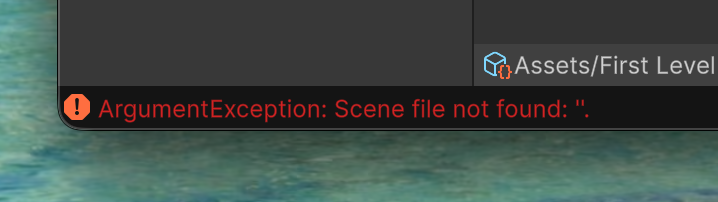
If there are errors when exporting your level, they will be logged to the Unity editor console. The most recent error will appear at the bottom-left corner of the editor window as shown:
To view the full error as well as the error history, open the Unity Console tab, which by default is next to the Project tab. If you do not have the Console tab, you can enable it by going to Window > General > Console.
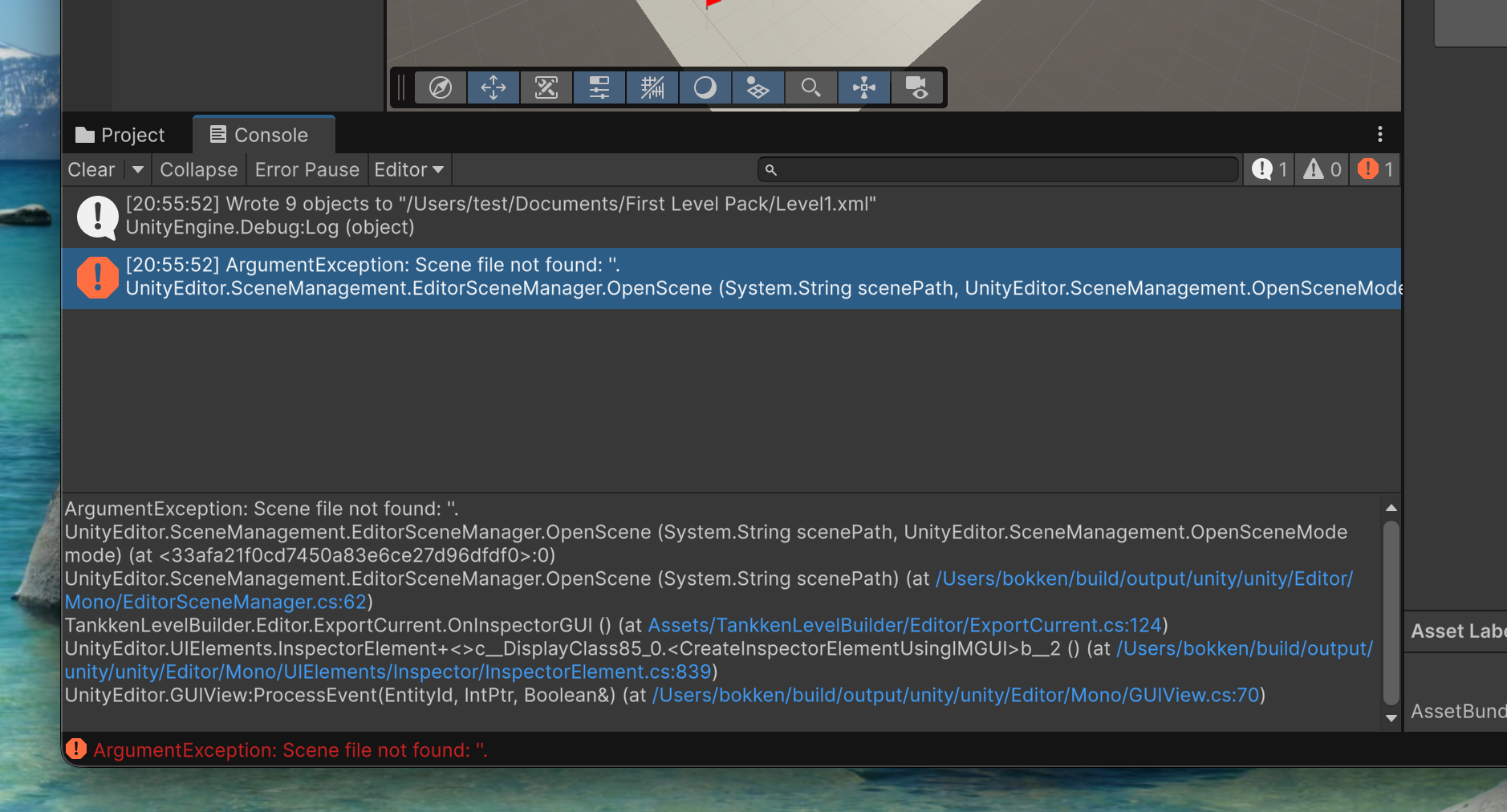
Sometimes errors (like this one) are not particularly informative in-and-of themselves. You may need to look at the exporter source code to understand what is going wrong. Our code is fairly well-documented and cleanly laid out, so that shouldn't be too hard to do. In this case, ExportCurrent.cs:124 is a call to EditorSceneManager.OpenScene(currentScene.name), meaning the exporter successfully exported the pack, but failed to restore the open scene before the export was started.
The game tries to deal with invalid level packs to the best of its ability, but this is not always possible. If the game is unable to deal with a level pack, you'll see a dialog like this:
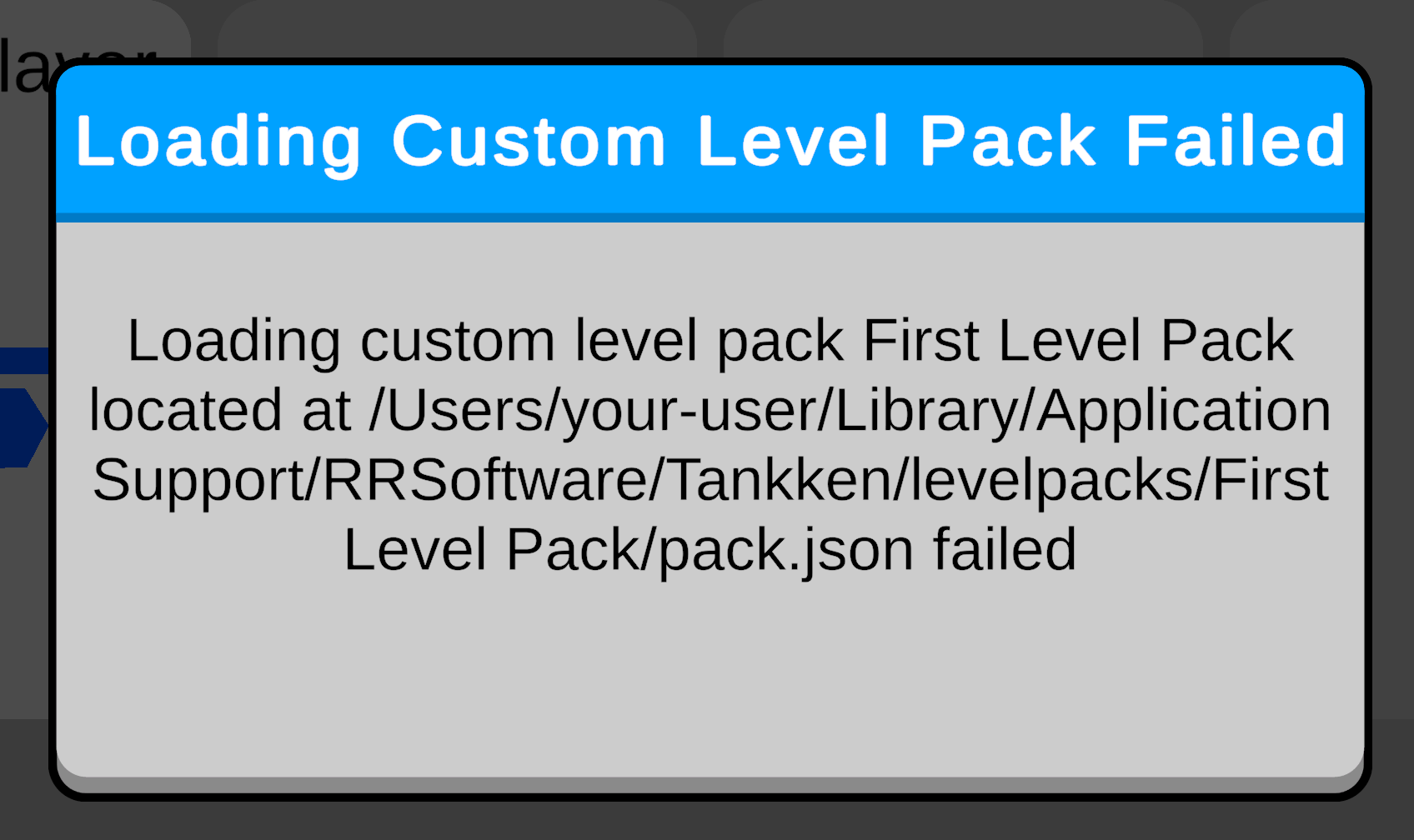
If initialization of the level itself fails, the game may break in a less useful way, such as softlocking on a black screen. In either case, to understand what went wrong, you'll need to read the game logs. You can find the log files here:
"There is an error in XML document (0, 0). ---> System.Xml.XmlException: Root element is missing."
This means the level pack that was loaded had a level with invalid XML, indicating that the level pack needs to be re-exported, or was improperly modified after export.
Diagnosing level pack issues takes some trial-and-error, and you may need to disable elements in your levels or simplify them to understand why the game is having issues loading your pack. That's just part of the deal with making custom content.